Is It the Internet Connection or the Equipment Acting Up? Here’s How to Find Out

Is It the Internet Connection or the Equipment Acting Up? Here’s How to Find Out
Few things test your patience like a suddenly slow or unreliable internet connection. Before you call your provider or schedule a technician, it’s worth checking whether the problem lies with your internet service itself—or with your own equipment. Here’s a step-by-step guide to help you pinpoint the cause and get your connection back on track.
Start by Checking the Connection
The first step is to determine whether the issue comes from your internet service. You can do this by testing the speed directly through a wired connection.
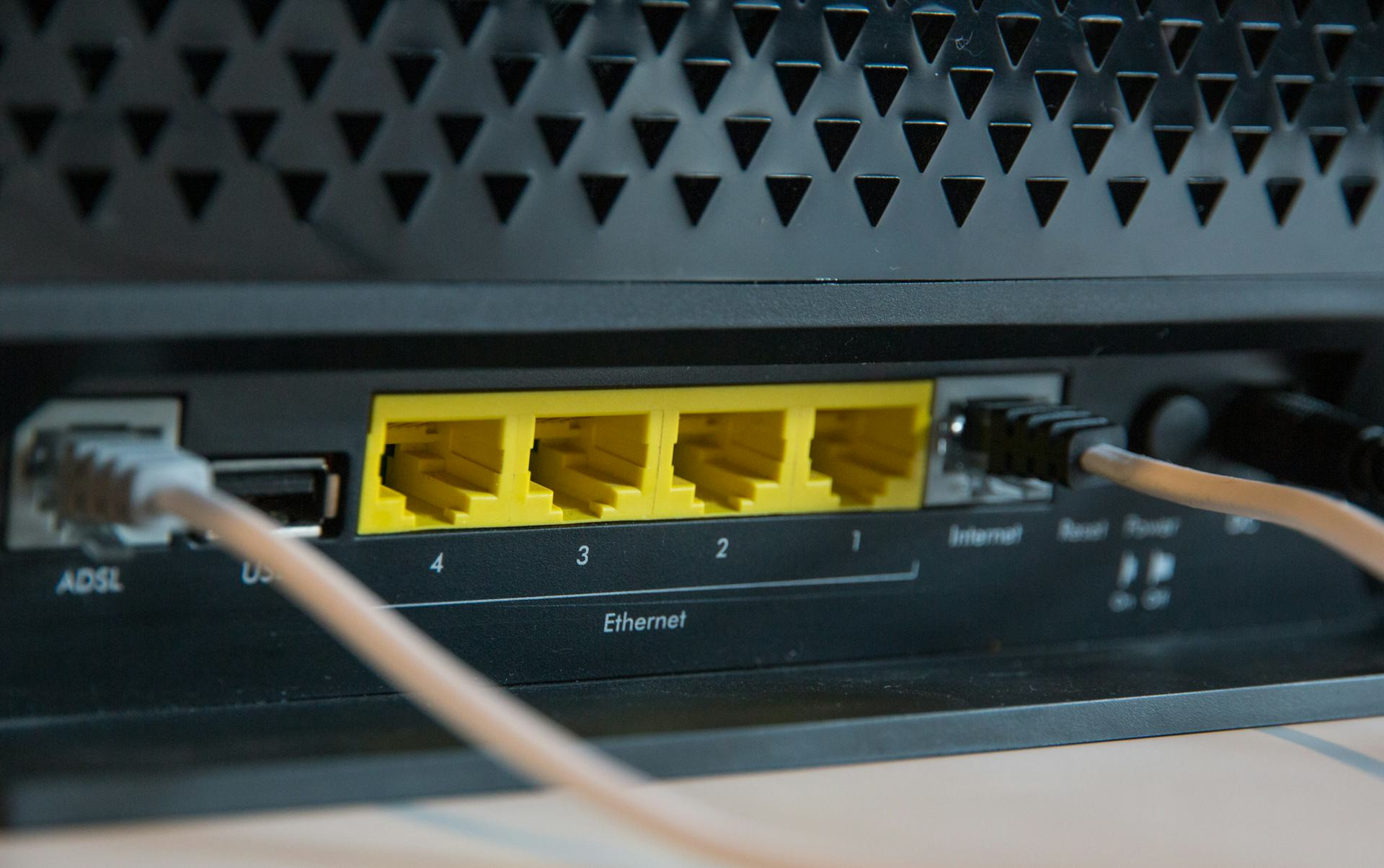
- Connect a computer directly to your router with an Ethernet cable. Wi-Fi speeds can fluctuate, so a wired connection gives you a more accurate reading.
- Run a speed test. Use a reliable service such as your provider’s own test page or an independent one like speedtest.net.
- Compare the results to your plan. If you’re paying for 300 Mbps but only getting 30 Mbps, the problem likely lies with the connection itself—not your equipment.
If the wired speed looks fine but Wi-Fi is slow, that points to an issue with your wireless network rather than your internet service.
Check the Router – The Heart of Your Home Network
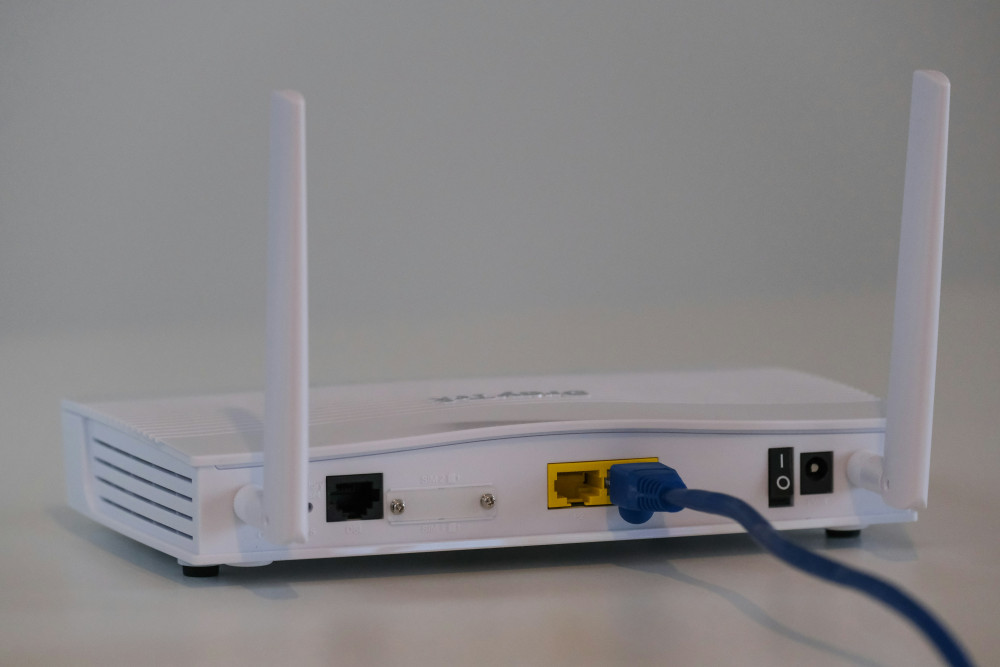
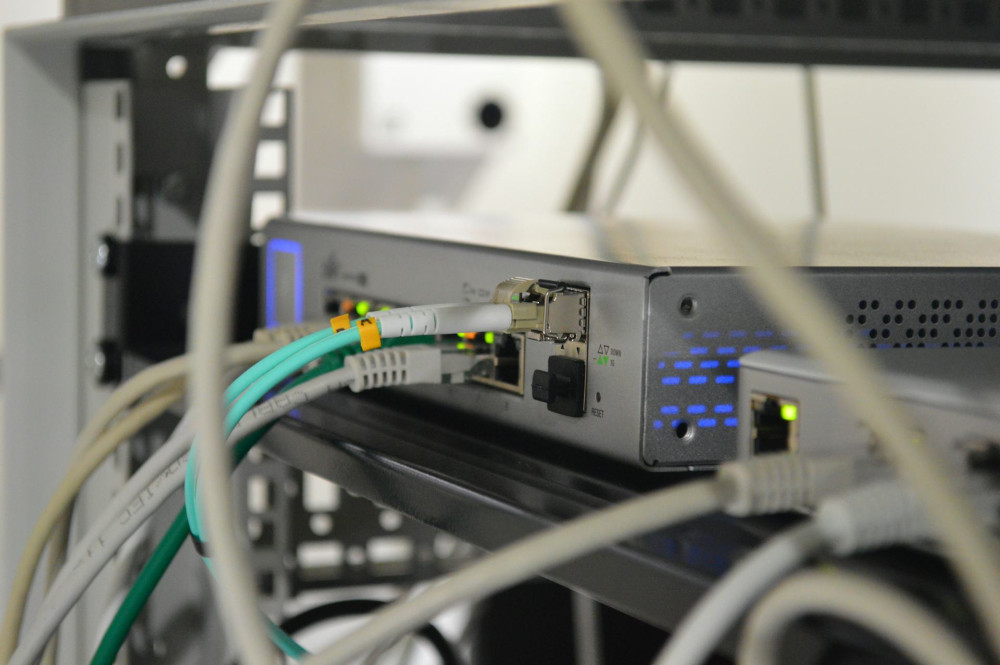
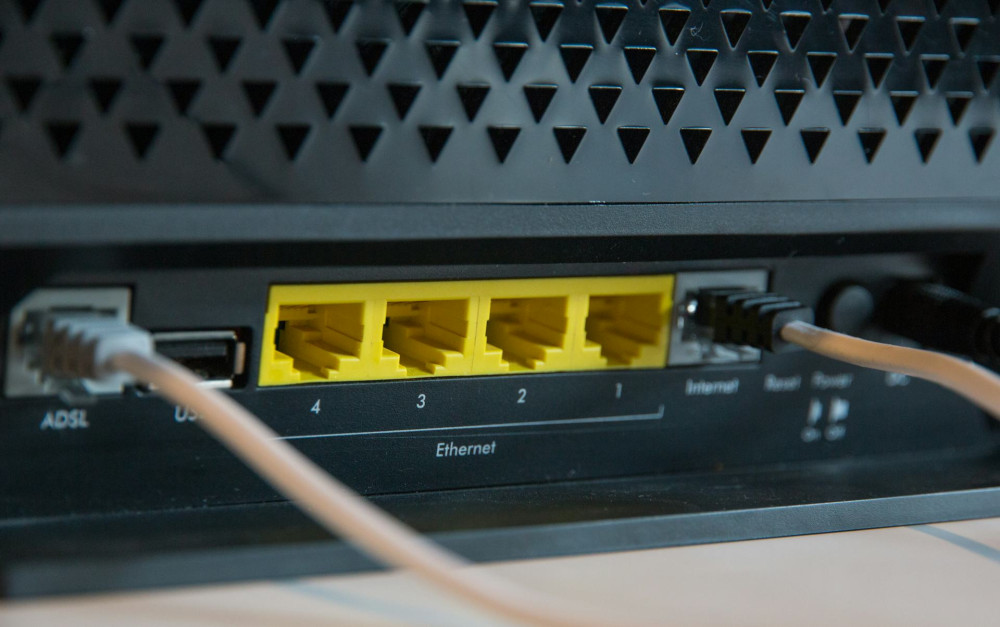
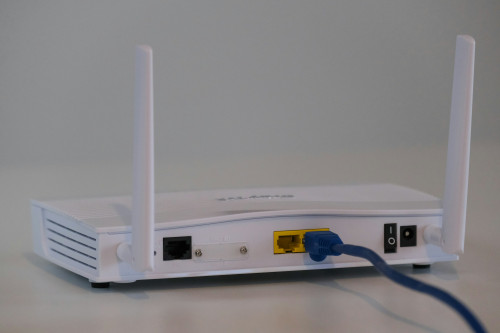
The router is often the culprit when your internet acts up. It distributes the signal throughout your home, and if it’s old, overloaded, or poorly placed, it can cause dropouts or slow speeds.
- Restart the router. It sounds simple, but a reboot can fix many temporary glitches.
- Check the placement. Keep the router in a central, open location—not hidden behind furniture or inside a cabinet. Concrete walls and metal surfaces can weaken the signal.
- Update the firmware. Routers have software that needs updates too. Log in to the router’s admin page and check for new firmware.
- Consider the age and quality. Routers typically last about 4–6 years. If yours is older, it may struggle to handle modern speeds or newer standards like Wi-Fi 6 or Wi-Fi 6E.
Test Your Devices
Even if your connection and router are fine, the issue might be with the device you’re using.
- Try multiple devices. If only one computer or phone has issues, that’s likely where the problem lies.
- Update your operating system and network drivers. Outdated software can cause unstable connections.
- Check for background programs. Some apps or updates may be using bandwidth without you realizing it.
- Scan for viruses or malware. Malicious software can slow down your network performance.
Evaluate Your Wi-Fi Environment
Wi-Fi is convenient but sensitive to interference. If your signal strength or speed fluctuates, try these steps:
- Change the channel. Neighboring routers may be using the same frequency, causing interference. Most routers can automatically select the best channel.
- Use the 5 GHz band. It offers faster speeds and less interference than 2.4 GHz, though with a shorter range.
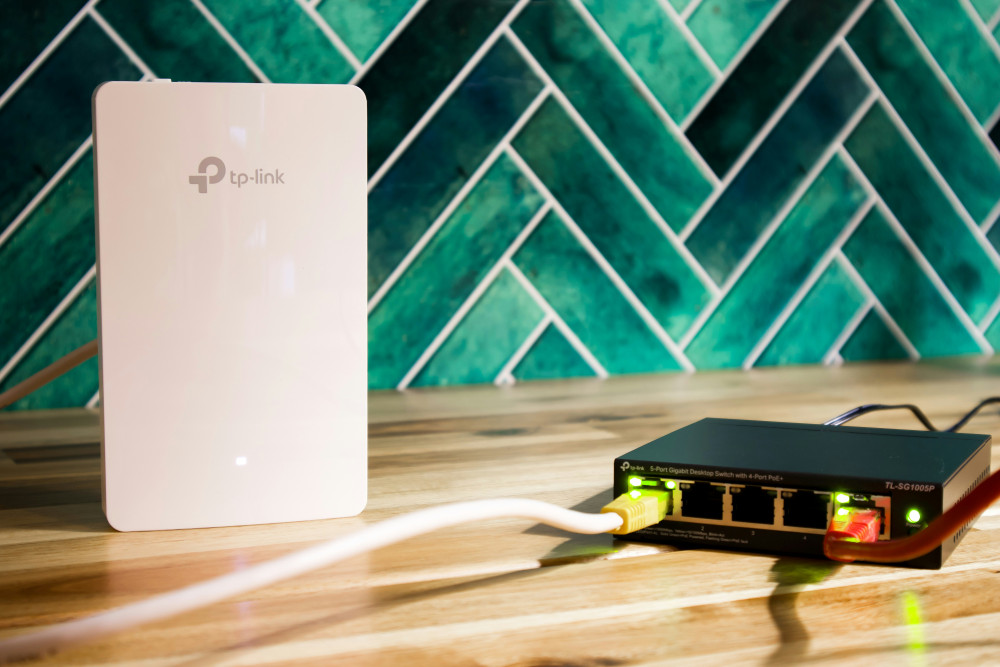
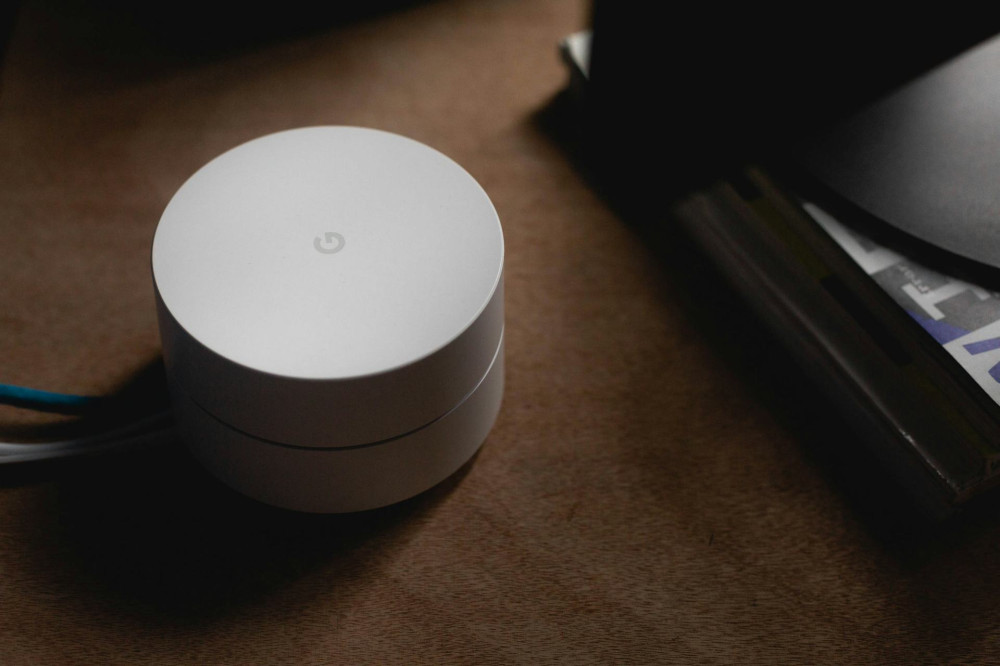
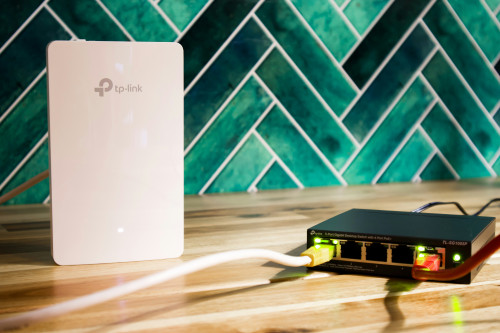
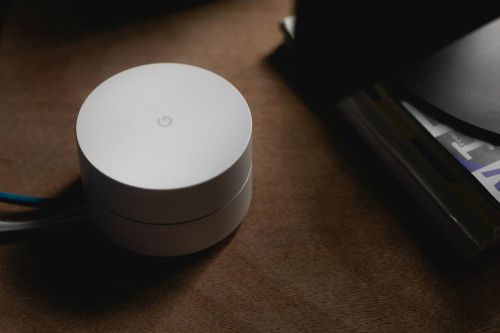
- Add a Wi-Fi extender or mesh system. In larger homes, one router may not be enough. A mesh network spreads the signal evenly throughout your space.
- Reduce interference. Microwaves, cordless phones, and Bluetooth speakers can all disrupt Wi-Fi signals.
When the Problem Is on the Provider’s End
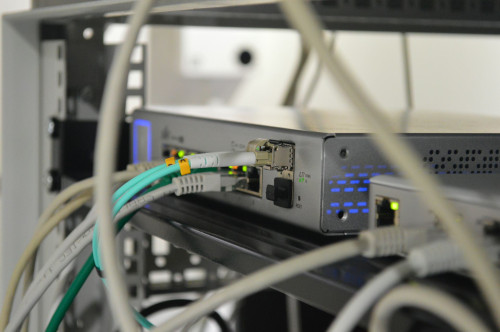
If you’ve tested everything at home and still have issues, the problem may be with your internet service. It could be a damaged cable, a local outage, or a temporary network issue.
- Check your provider’s outage map or status page. Most ISPs list current service disruptions by ZIP code.
- Contact customer support. Explain the tests you’ve already done—this helps them troubleshoot more efficiently.
- Ask for a line test. Your provider can remotely check the signal quality to see if there’s a problem outside your home.
How to Prevent Future Problems
A stable network requires a bit of maintenance. Here are some good habits to keep things running smoothly:
- Restart your router occasionally.
- Keep both your router and devices updated.
- Make sure the router has good ventilation—overheating can cause dropouts.
- Change your Wi-Fi password regularly to prevent unauthorized access.
- Consider upgrading to a newer router if you’ve recently increased your internet speed.
Læs også:
In Short: Troubleshoot Step by Step
When your internet misbehaves, the key is to eliminate one factor at a time. Start by testing the wired connection, then move on to the router, and finally your devices. By following this process, you can quickly figure out whether it’s the connection or the equipment—and get back to a stable, frustration-free online experience.
Læs også: